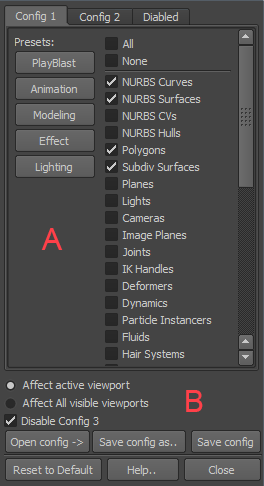
Section A: There are at most three view port config tabs. Section A: There are at most three view port config tabs.
Presets: Click the presets buttons to quickly set the view configs of current tab.
Section B:
Affect active / all visiable viewport.. : It determines the view switch to control current / all maya visible view ports.
In MGTools 2.5 ,all viewports becomes all visible viewports which save tons of time to do a viewSwitch.
Disable Config 3.. : If u only want to switch in two configs , then turn on this option. the switch three will be disabled.
Open config ->.. : Click to reuse the config saved before.
Save config as..: Save current config as .cfg file.
Save config :Save current view switch config editing, this will directly determine the acting of clicking performance of the button  in MGTools. in MGTools.
Restore to Default : Quickly reset all config to default setting.
Help.. : View view switch config help doc.
Close: Close view switch config window.
|